How to print labels
Choose releases, print A4/Letter PDF sheets or a 50x40 mm roll on a thermal printer.
The “Stickers” page prints stickers and cards for physical records. On a computer it is “Stickers” in the navigation; on a phone it is under “More”.
You can print a ready PDF on a regular printer or send a stream straight to a thermal printer. Below: choosing releases, the start position, the fields, and both print paths.
Choosing releases and the sheet format
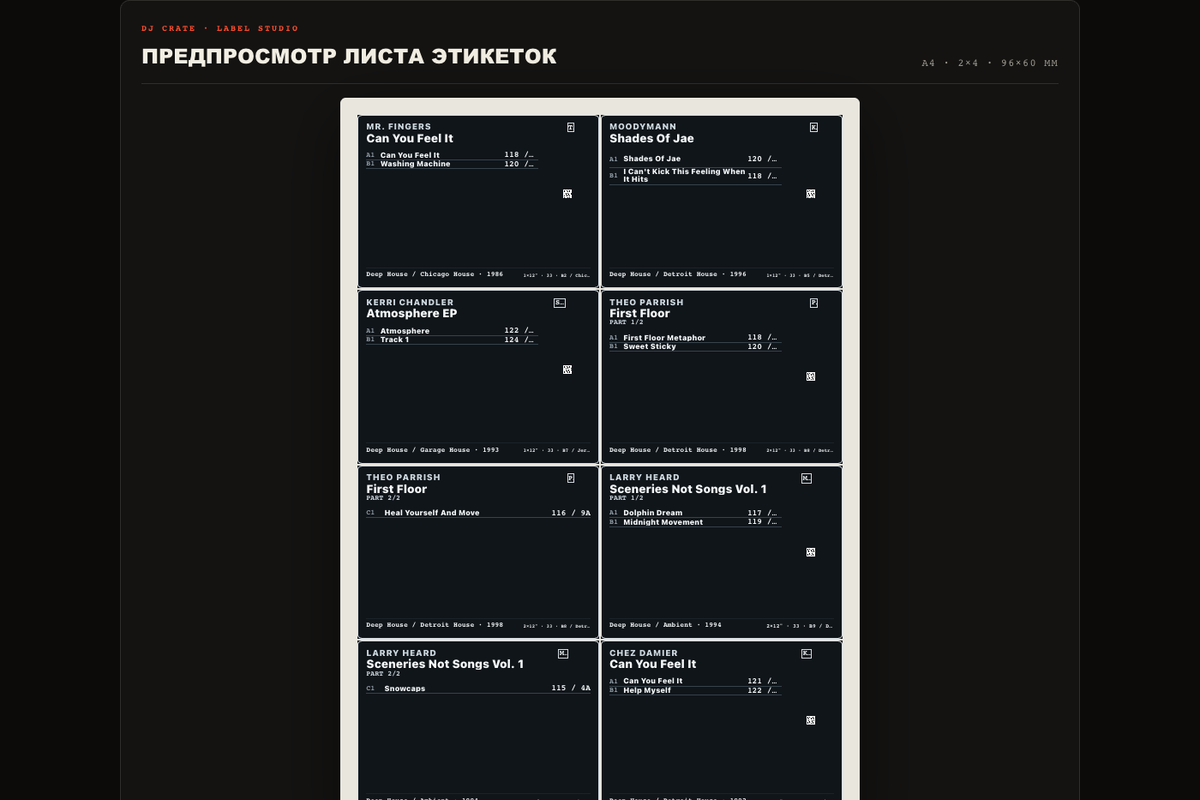
First select releases or copies from your library. Then choose a template: A4 or Letter for regular paper, plus margins and spacing inside the sheet. You can prepare up to 120 releases at once so the file stays easy to check.
On a phone the “Stickers” item is under “More” in the bottom navigation.
- Open “Stickers” (on a phone — “More” → “Stickers”).
- Mark releases or copies.
- Choose an A4 or Letter template.
- Adjust margins and spacing.
Start position
Start position is for a partially used sheet. Numbering starts at 0: 0 is the first cell, 1 is the second, and so on from left to right and top to bottom.
If the first three stickers are already printed, set 3 — printing starts at the fourth cell. That way a sheet is not wasted.
Label fields and the QR code
Choose the fields: artist, title, catalog number, BPM, key, storage location, and QR code. The QR opens the passport for that exact copy, so questions at a market are answered with one scan.
Remember: personal fields you print on paper become visible to everyone you show that paper to. If BPM or key looks wrong, fix it on the card before printing.
Printing the PDF
Download the ready PDF and open it in a viewer. Print at 100% scale and turn off “Fit” or “Fit to page”: auto-fitting shifts the grid.
For new paper stock, first run a test on plain paper and compare it with the sticker sheet under light.
Printing on a thermal printer
In thermal-printer mode the page creates a ready-to-send TSPL, ZPL, EPL, or DPL stream in a .prn or .zpl file. Send it to the printer without conversion. The layout targets 50x40 mm labels with a 2 mm gap.
Windows: send the file as RAW through the Xprinter driver, or run copy /b labels.prn \\PC\printer or copy /b labels.zpl \\PC\printer. macOS and Linux: lp -d <printer> -o raw labels.prn or lp -d <printer> -o raw labels.zpl. Do not open a raw printer file in a PDF viewer and do not enable driver scaling.
Before the first run, calibrate the gap sensor with the FEED button or the Xprinter utility. Start with density 8 and speed 4. If output is too dark or too light, adjust density gradually and test with one label.
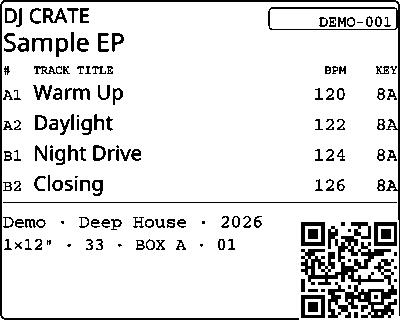
This is a layout sample. Its PDF can be printed through a regular thermal printer driver on 50×40 mm paper, scale 100%, without fit-to-page. An on-screen image has no physical size of 50 mm.
Choosing the printer language
Choose “Xprinter and compatible (TSPL)” for the XP-422B and most TSPL-compatible POS clones; “Zebra (ZPL)” for Zebra GK/GX/ZD and other ZPL models; “Older Zebra, Godex, Argox (EPL)” for the LP2844 and devices whose manual lists EPL/EPL2; or “Honeywell / Datamax (DPL)” for Datamax E/M/I-Class and compatible Honeywell DPL printers.
If the model is unclear, check its manual for the language name or send one diagnostic label before a larger run. ZPL is verified with the Labelary software renderer. EPL and DPL are checked against their specifications and automated tests, but physical output on corresponding hardware is not yet confirmed.
The last selected language is saved in this browser. Choose 203 or 300 dpi separately for ZPL, matching the printhead resolution.
Direct printing with WebUSB
Direct printing sends the ready stream straight to a USB printer from the browser. A single previously authorized printer is reused automatically; press “Choose another printer” to switch. Normal .prn or .zpl generation and download remain available as a fallback.
If “Thermal printer” is missing from “Output format”, select “PDF for your printer” and the Thermal roll 50x40 template. Create the PDF, press “Open for printing”, and choose your thermal printer in the regular print dialog. Set the driver paper size to 50×40 mm and scale to 100% without fit-to-page.
On Android, connect the printer through USB OTG and open DJ Crate in Chrome. Android may show an additional system USB permission prompt. Safari and Firefox do not expose WebUSB: download the .prn and send it another way. Direct USB printing is unavailable on iPhone/iPad; use PDF with AirPrint or move the .prn to a computer.
Windows: if the browser sees the device but cannot open its interface, install WinUSB for the printer USB interface with Zadig: Options → List All Devices, select the printer itself, then Replace Driver. Do not select another USB device. While WinUSB is active, the regular driver and print queue for that interface may stop working; reinstall the manufacturer's driver to restore them. On macOS and Linux, closing other applications that hold the printer and granting browser access is usually enough.
- Connect the printer by USB and open DJ Crate in Chrome or Edge on a computer.
- Open “Stickers” and select one release.
- Expand “Options”.
- Set “Output format” to “Thermal printer (50x40 roll)”, select the “Printer language” from its manual, and set “Copies of each label” to 1. For ZPL also set “Printer resolution” to 203 or 300 dpi to match the printhead.
- Load 50×40 paper with a 2 mm gap and calibrate the sensor with the FEED button.
- Press “Print USB test label” and choose exactly your printer in the system window.
- Press “Create and print”.
Options
- Density (0–15)
- 8
- Speed (2–6 in/s)
- 4
- Copies of each label
- 1
The “Data was sent to the printer.” message confirms transfer only. Check the result on paper yourself.
Find a record and list it for sale
A label helps you find a record quickly: its storage location tells you where it is, and the QR opens that exact copy in DJ Crate. If you no longer want the record, you can list it for sale from the same card.
Before printing, fill in “Storage” in the card and enable the storage location and QR fields on the label. For example, BOX A · 01 in the sample identifies a spot in a box. Print your record's label from your own collection: the sample QR opens the demo collection.
- Find the record using the storage location on its label or collection card.
- Point your phone camera at the QR and open the link. When signed in as the owner, you go straight to this copy's private card. If you see the public passport, sign in to your account and open the QR link again.
- In your private card, expand “Passport & sale” and find “QR sale offer”.
- Choose “For sale”, enter the “Price”, and optionally fill in “Note for the buyer”.
- Press “Save”. If “Copy condition” opens, select the record and sleeve conditions and press “List for sale”.
- Wait for “Saved”. Buyers opening the same QR link will see your sale status and price.
For the shared Crate Digs, separately enable a “Public” profile and the “Show my records in Crate Digs” checkbox — see the profile visibility guide below. An existing QR passport remains accessible by link even when the profile is private.